The sleek, adaptable Touch Bar on your MacBook Pro is designed to put essential controls right at your fingertips. So when it starts acting up – displaying bright white or green flashes, disappearing entirely, or flickering erratically – it can be incredibly frustrating. This isn't just an annoyance; it can disrupt your workflow and raise concerns about a potentially expensive repair. The good news is that for many MacBook Pro users, especially those with models from 2018-2020 and the 2020 13-inch M1 MacBook Pro, these flickering issues often stem from software glitches or incorrect settings, not necessarily a serious hardware failure.
Before you consider a trip to the Apple Store or brace yourself for a hefty repair bill, let's explore a comprehensive set of troubleshooting steps. This guide will walk you through potential solutions, from the simplest restarts to more in-depth system resets, helping you identify and resolve the problem yourself. To truly grasp the scope of the issue and why it happens, you might want to first Understand Touch Bar flickering causes that plague many users.
The First Line of Defense: Software & Settings Tweaks
Often, the most effective remedies are also the simplest. Many Touch Bar flickering issues originate from minor software hiccups that can be resolved with basic troubleshooting. These steps are quick to perform and can save you a lot of time and worry.
Start with the Basics: Reboot and Relaunch
Sometimes, all your Mac needs is a fresh start. A standard restart can clear temporary glitches, while manually relaunching the Touch Bar's core processes can kickstart it back into proper function.
- Restart Your Mac: Go to the
Apple menuin the top-left corner of your screen and selectRestart. This simple action can resolve countless minor software conflicts that might be causing the flickering. - Relaunch Touch Bar Processes: If a restart doesn't help, the Touch Bar's background processes might be stuck.
- Using Activity Monitor: Open
Launchpad > Other > Activity Monitor. In the search bar, typeTouchBarServer, select it, then click the 'X' button in the toolbar and chooseForce Quit. Repeat this forControl StripandTouch Bar Agent. Your Mac will automatically restart these processes. - Using Terminal: For a quicker approach, open
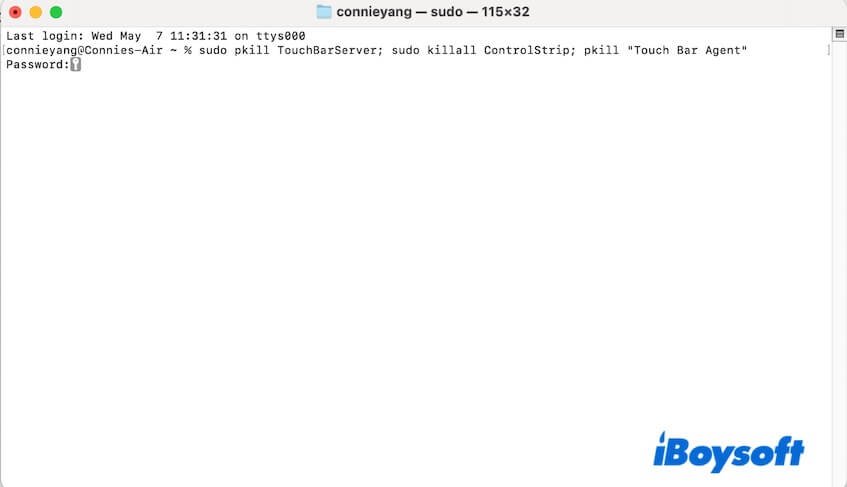
Launchpad > Other > Terminaland enter the command:sudo pkill TouchBarServer; sudo killall ControlStrip; pkill "Touch Bar Agent". You may need to enter your admin password.
Adjusting Your Touch Bar and Display Settings
Certain configurations within macOS can inadvertently lead to flickering. Checking and adjusting these settings is a crucial step in diagnosing the problem.
- Tweak Touch Bar Settings: Navigate to
Apple menu > System Settings > Keyboard > Touch Bar Settings. Within theTouch Bar showssection, try selectingExpanded Control Strip. You can then clickCustomize Control Stripto remove and re-add buttons, which can sometimes reset its behavior. - Disable Ambient Light Sensor: A malfunctioning ambient light sensor might be causing your display and Touch Bar brightness to fluctuate, leading to perceived flickering. Go to
Apple menu > System Settings > Displaysand toggle offAutomatically adjust brightness. See if the flickering persists with this setting disabled. - Turn Off Touch Bar Zoom: If you've enabled accessibility features, particularly Touch Bar Zoom, it might be conflicting with the physical Touch Bar's display. To check, go to
Apple menu > System Settings > Accessibility > Zoomand uncheckEnable Touch Bar zoom.
Deeper Software Troubleshooting & Maintenance
Beyond immediate settings, underlying system issues like corrupted caches or outdated software can contribute to Touch Bar problems. Addressing these can improve overall system stability.
- Delete System Cache: Over time, accumulated system cache files can cause various performance issues, including erratic Touch Bar behavior. While complex to delete manually, specialized tools can automate this for you.
- Update macOS: Ensuring your MacBook Pro is running the latest minor update of its current macOS version is vital. Software updates often include bug fixes that directly address system stability and component performance. Check for updates via
Apple menu > System Settings > General > Software Update. - Scan for Malware: While not a common direct cause, malware can interfere with system processes and lead to unexpected behavior. Performing a periodic malware scan is good practice for any Mac user.
These software-centric solutions cover the vast majority of Touch Bar flickering incidents. If you're looking for an in-depth guide on these and other related fixes, our comprehensive article on how to Fix Touch Bar Flickering is your next best resource.
For Intel-Based Macs: Reset SMC and NVRAM/PRAM
If you own an Intel-based MacBook Pro, two specific resets—SMC (System Management Controller) and NVRAM/PRAM (Non-Volatile RAM)—can resolve issues related to power, battery, startup, and other low-level system functions, including display and Touch Bar behavior. These are essential troubleshooting steps for Intel models when software fixes don't suffice.
- SMC Reset: This reset can help with power management issues. Turn off your Mac. Then, simultaneously press and hold the
Control + left Option + Shiftkeys for 10 seconds. While holding these, also press and hold thePowerbutton for another 10 seconds. Release all keys, then pressPowerto turn on your Mac. - NVRAM/PRAM Reset: This clears user settings and restores them to default, which can fix display-related problems. Turn off your MacBook Pro. Press the
Powerbutton, and immediately press and holdOption + Command + P + Rkeys for 20 seconds. Release them after you hear the startup sound a second time (or after the Apple logo appears and disappears twice).
When the Flickering Persists: Suspecting Hardware Issues
After meticulously working through all the software and system-level troubleshooting steps, if your Touch Bar continues to flicker, it's highly likely the problem points to a hardware fault. This can be more concerning, as hardware repairs are typically more involved and costly. Issues could range from a loose internal connection to a faulty display or Touch Bar component itself.
Our dedicated guide offers further insights into diagnosing and understanding these more serious cases. To delve deeper into what hardware issues might be at play and some potential (though often advanced) avenues for resolution, you'll want to read about how to Fix hardware Touch Bar flickering.
Seeking Professional Help and Warranty Options
If your troubleshooting journey leads you to a confirmed or suspected hardware issue, professional intervention is usually the next step. Contacting Apple Support is crucial to determine if your device is still under warranty or if you qualify for any extended repair programs. Be prepared to describe all the troubleshooting steps you've already taken.
Understanding your options for professional repair, whether through Apple or a third-party service, is essential for making an informed decision. For a detailed breakdown of what to expect when engaging with support and navigating warranty claims, Here are a few options for getting your MacBook Pro's Touch Bar professionally serviced.
Maintaining Your Mac: Preventing Future Touch Bar Woes
While some hardware failures are unavoidable, many Touch Bar issues can be mitigated by good maintenance practices and careful handling of your MacBook Pro. Keeping your macOS updated, avoiding physical impacts, and being mindful of extreme temperatures can all contribute to the longevity and stability of all your Mac's components, including the Touch Bar.
Regular system clean-ups and sensible usage habits play a significant role in preventing various Mac problems down the line. To learn more about how to keep your MacBook Pro in prime condition and proactively address potential issues before they arise, explore our guide on Preventing MacBook Touch Bar problems.
Moving Forward with a Flicker-Free Future
Dealing with a flickering MacBook Pro Touch Bar can be a frustrating experience, but it doesn't have to be a dead end. By systematically working through the software and system-level solutions, you stand a strong chance of resolving the issue yourself. Even if the problem turns out to be hardware-related, understanding your options and knowing when to seek professional help empowers you to make the best decision for your device. Here's to a future of seamless interaction with your MacBook Pro, free from annoying flickers and glitches.