When your MacBook Pro's sleek Touch Bar starts acting up – maybe it's a bright white flicker, an unsettling green strobe, or simply goes dark – it can feel like a jarring malfunction on an otherwise premium device. Before you spiral into thoughts of expensive hardware replacements, remember that most of these frustrating visual glitches often point to software troubleshooting for Touch Bar flickering. Often, a few targeted adjustments and resets are all it takes to banish the erratic behavior and restore your Touch Bar to its smooth, responsive self.
This guide will walk you through a comprehensive, step-by-step approach to diagnosing and resolving Touch Bar flickering issues, focusing on the software side of things. We'll start with quick fixes and move to more advanced system-level solutions, empowering you to tackle the problem with confidence.
At a Glance: Your Quick Fix Checklist
- Restart Your MacBook: The classic first step for good reason.
- Relaunch Touch Bar Processes: Force quit
TouchBarServer,ControlStrip,Touch Bar Agent. - Adjust Touch Bar Settings: Tweak Control Strip customization.
- Disable Ambient Light Sensor: Prevent erratic brightness adjustments.
- Turn Off Touch Bar Zoom: Avoid conflicts with Accessibility features.
- Clear System Caches: Remove accumulated temporary files.
- Update macOS: Ensure you're running the latest bug fixes.
- Reset SMC & NVRAM: Address fundamental power and system settings.
- Test in Safe Mode/New User: Isolate app or user-specific problems.
- Reinstall macOS: The ultimate software reset (with a backup!).
Decoding the Flicker: Software vs. Hardware
The Touch Bar is an OLED strip that functions much like an external display, meaning its performance relies heavily on drivers, system processes, and application interactions. When it flickers, whether it's a bright white flash, a green shimmer, or a temporary blackout, the immediate culprit is rarely a physical defect. Instead, it’s far more common for a software glitch to be the root cause.
Think of it this way: a misbehaving app, an outdated system file, or even conflicting settings can send corrupted signals to the Touch Bar, causing it to display visual anomalies. This is why a methodical software-first approach is not just prudent, but often the most effective path to a solution. Only after exhausting all software possibilities should you consider a hardware issue.
First Line of Defense: Quick Fixes You Can Do Right Now
Before diving deep into system settings, let’s start with the simplest, yet often most effective, solutions. These steps are designed to clear temporary glitches and give your Touch Bar a fresh start.
A Simple Restart Can Work Wonders
It sounds almost too easy, doesn’t it? But a full system restart is surprisingly effective at resolving a myriad of software hiccups, including Touch Bar flickering. Restarting clears temporary memory, resets system processes, and can resolve minor software conflicts that are causing the visual instability.
To do this, simply go to the Apple menu () > Restart... and confirm. Give your MacBook Pro a minute or two to completely shut down and boot back up. Once logged in, observe your Touch Bar carefully.
Giving Your Touch Bar a Fresh Start: Relaunching Processes
The Touch Bar, like many macOS features, runs on dedicated background processes. If one of these processes becomes stuck, corrupted, or enters an erroneous state, it can lead to flickering. Force quitting and relaunching these processes allows macOS to automatically restart them, often clearing the problem.
You have two main ways to do this:
- Via Activity Monitor (The GUI Way):
- Open Activity Monitor (you can find it in Launchpad > Other, or search for it with Spotlight, Command + Spacebar).
- In the search bar at the top right, type
TouchBarServer. Select the process, then click the 'X' button in the toolbar to Force Quit it. - Repeat this for
ControlStripandTouch Bar Agent. - Once you force quit them, macOS will automatically restart these processes in the background. Check your Touch Bar.
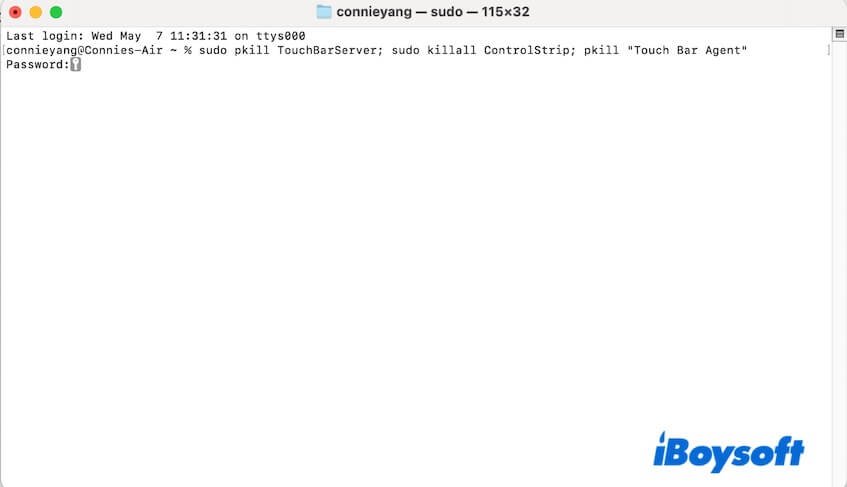
- Via Terminal (The Power User Way):
- Open Terminal (Launchpad > Other, or Spotlight).
- Type the following command precisely, then press Enter:
bash
sudo pkill TouchBarServer; sudo killall ControlStrip; pkill "Touch Bar Agent" - You may be prompted to enter your administrator password. Type it (it won't show characters as you type) and press Enter.
- This command will simultaneously kill all three key Touch Bar processes, and macOS will then automatically restart them.
This step is a frequent first aid for many Touch Bar quirks, including flickering.
Fine-Tuning Your Touch Bar Settings
Sometimes, the flicker isn't a deep-seated bug but a conflict arising from how your Touch Bar is configured. Adjusting or re-initializing its settings can often resolve these minor clashes.
- Go to Apple menu () > System Settings (or System Preferences on older macOS versions).
- Click on Keyboard.
- Navigate to the Touch Bar Settings section.
- You can try changing the "Touch Bar shows" option, perhaps from "App Controls" to "Expanded Control Strip" and back again.
- Then, click "Customize Control Strip...". Drag any buttons off the Touch Bar to remove them, and then drag them back on from the bottom of the screen. This process essentially refreshes their configuration, which can resolve display issues.
Digging Deeper: System-Level Adjustments
If the quick fixes didn't stick, it's time to investigate some deeper system settings and cached files that could be contributing to the flickering.
Taming the Ambient Light Sensor
Your MacBook Pro has an ambient light sensor designed to automatically adjust screen brightness based on your environment. While usually helpful, a faulty or overly aggressive sensor can sometimes cause erratic behavior, potentially extending to the Touch Bar.
To rule this out:
- Go to Apple menu () > System Settings > Displays.
- Find the option "Automatically adjust brightness" and toggle it off.
- Observe your Touch Bar. If the flickering stops or reduces, you’ve found your culprit. While you might prefer automatic brightness, disabling it could be your fix.
Disabling Touch Bar Zoom
macOS Accessibility features are fantastic, but sometimes they can inadvertently cause conflicts. The "Touch Bar zoom" feature, designed to magnify content on the Touch Bar for better visibility, has been known to clash with the physical Touch Bar display, resulting in flickering.
To disable it:
- Go to Apple menu () > System Settings > Accessibility.
- Scroll down or search for Zoom.
- In the Zoom settings, look for "Enable Touch Bar zoom" and uncheck the box.
- Restart your Mac for good measure and check if the flickering persists.
Cleaning Out the Digital Clutter: Deleting System Cache
Over time, your Mac accumulates various temporary files, known as cache files. While these are designed to speed things up, a corrupted or overly large cache can sometimes lead to system instability, manifesting as issues like a flickering Touch Bar.
Cache files are stored in several locations:
~/Library/Caches(user-specific caches)/System/Library/Caches(system caches)/Library/Caches(application caches)
Manually deleting these can be tricky, as you need to know which files are safe to remove. A safer and more efficient approach is to use a reputable system utility. Tools like iBoysoft DiskGeeker are designed to safely identify and clean out unnecessary cache files without risking system stability. Running such a cleaner can often clear up underlying software conflicts. Remember to restart your Mac after cleaning caches.
The Power User's Toolkit: Advanced Resets & Updates
These steps dive deeper into your Mac's core functions and operating system, addressing more fundamental issues that might be behind a persistent Touch Bar flicker.
Resetting SMC and NVRAM: The Hardware Whisperers
The System Management Controller (SMC) and Non-Volatile Random-Access Memory (NVRAM, or PRAM on older models) are critical components that manage low-level functions on your Mac.
- SMC: Controls power, battery charging, fan behavior, backlight, and other core hardware interactions. A reset can resolve power-related issues that might affect the Touch Bar's stability.
- NVRAM/PRAM: Stores settings like display resolution, startup disk selection, time zone, and recent kernel panic information. Resetting it can clear corrupted preference data affecting display output.
Important: The exact steps to reset SMC and NVRAM vary significantly by MacBook Pro model (especially whether it has the T2 Security Chip). It is crucial to consult Apple's official support documentation for your specific model to avoid any issues. Search "reset SMC [your MacBook Pro model]" and "reset NVRAM [your MacBook Pro model]" on Apple's support site.
For example, on newer T2-equipped Macs, an SMC reset often involves shutting down, holding the power button for 10 seconds, then releasing, waiting a few seconds, and powering on normally. NVRAM reset usually involves holdingOption + Command + P + Rduring startup. Always follow Apple's precise instructions for your hardware.
Staying Current: Update Your macOS
System bugs are a fact of life in software development. Apple regularly releases macOS updates that include performance improvements, security patches, and, crucially, bug fixes. If your Touch Bar issues are widespread or related to a known software flaw, an operating system update could be the simplest fix.
- Go to Apple menu () > System Settings > General > Software Update.
- If an update is available, follow the prompts to download and install it.
- Ensure your Mac is backed up before any major OS update.
Keeping your macOS version current is one of the most effective preventative measures against a host of software-related issues, including those affecting your Touch Bar.
Isolating the Problem: Diagnostic Steps
If the flickering persists, it's time to play detective and figure out if the problem is system-wide, linked to a specific user profile, or caused by a third-party application.
The Safe Mode Test: Hunting for Third-Party Conflicts
Safe Mode starts your Mac with only essential system software and disables certain third-party extensions and startup items. If your Touch Bar works perfectly in Safe Mode, it strongly suggests a third-party application, driver, or login item is causing the conflict.
- Restart your MacBook Pro.
- Immediately press and hold the Shift key as your Mac starts up. Keep holding it until you see the Apple logo and a progress bar. Release Shift when you see the login window.
- Log in (you might need to do so twice). You'll see "Safe Boot" in the menu bar.
- Observe your Touch Bar in Safe Mode. If it's flicker-free, restart your Mac normally. If the flickering returns, you'll need to identify the conflicting application by removing recently installed apps or disabling login items.
The New User Test: User-Specific or System-Wide?
Sometimes, issues are tied to a corrupted user profile or specific settings within your main account. Creating and testing with a new user account helps determine if the problem is isolated to your current user profile or affects the entire system.
- Go to Apple menu () > System Settings > Users & Groups.
- Click the Add Account... button (you may need to unlock with your administrator password).
- Create a new standard user account.
- Log out of your current account and log into the newly created account.
- Test the Touch Bar. If it works fine in the new account, the issue is likely with your primary user profile, possibly due to corrupted preferences or conflicting login items. If it still flickers, the problem is system-wide.
When All Else Fails: Reinstall & Hardware Considerations
If you've diligently worked through every software solution and your Touch Bar continues to flicker, there are a couple of final, more drastic steps.
Reinstall macOS: A Fresh Start for Software
Reinstalling macOS is the ultimate software reset. It replaces all system files with a fresh copy, which can resolve deeply rooted software corruption that regular updates or fixes can't touch. Crucially, always back up your entire Mac before attempting this. You can use Time Machine or a third-party backup solution.
To reinstall macOS:
- Restart your Mac and immediately hold down Command + R (for Macs with Apple Silicon, power on and hold the power button until you see startup options, then click Options).
- This will boot your Mac into Recovery Mode.
- From the macOS Utilities window, select "Reinstall macOS".
- Follow the on-screen instructions. This will install the version of macOS that came with your Mac, or the nearest available version.
Reinstalling macOS without erasing your drive typically keeps your personal files intact, but a fresh backup is always non-negotiable for peace of mind.
The Last Resort: Hardware Diagnosis
If, after trying every single software troubleshooting step, your Touch Bar continues to flicker erratically, it's time to reluctantly consider a hardware problem. This is often the most expensive solution, as Touch Bar repairs frequently involve replacing the entire top case assembly of your MacBook Pro.
- Contact Apple Support: They can run remote diagnostics and schedule an appointment at an Apple Store or authorized service provider.
- Authorized Service Provider: These technicians have the specialized tools and expertise to accurately diagnose hardware faults.
While some advanced users might consider self-repair, it's highly not advised for Touch Bar issues. The components are delicate and integrated, making DIY repairs risky and potentially leading to further damage. Before you commit to any repair, inquire about the potential costs. If your Mac is still under warranty or AppleCare+, you might be covered. For a comprehensive guide to all things Touch Bar flickering, you might find our MacBook Pro Touch Bar flickering guide helpful for further context.
Proactive Prevention: Keeping Your Touch Bar Stable
An ounce of prevention is worth a pound of cure, especially when it comes to keeping your Mac's Touch Bar performing flawlessly. Here are some habits to adopt:
- Regularly Update macOS: As mentioned, Apple's updates contain vital bug fixes and performance enhancements. Make it a habit to check for and install them promptly.
- Manage Third-Party Applications: Be mindful of what you install. Unreliable or poorly coded apps can introduce system instability. Stick to reputable sources, read reviews, and uninstall applications you no longer use.
- Monitor System Resource Usage: Keep an eye on Activity Monitor (Applications > Utilities). If an application is consistently hogging CPU or memory, it could be causing system-wide slowdowns or conflicts, which might manifest as Touch Bar issues. Quit or troubleshoot any misbehaving apps.
By integrating these practices into your routine, you can significantly reduce the likelihood of encountering future Touch Bar flickering or other software-related glitches.
Common Questions About Touch Bar Flickering
Let’s tackle some frequently asked questions about this frustrating issue.
"Why is my Touch Bar flickering green/white/black?"
The specific color (or lack thereof) of the flicker often indicates a display output error. Green flickering is frequently associated with graphical driver issues or display data corruption. Bright white flickering or complete blackouts usually point to an inability of the Touch Bar to properly render its content, which can stem from system process crashes, corrupted cache, or driver conflicts. Regardless of the visual symptom, the troubleshooting steps remain largely the same, focusing on software integrity.
"Can a software update really fix Touch Bar issues?"
Absolutely. Software updates from Apple are designed to patch security vulnerabilities, improve performance, and fix known bugs. If the Touch Bar flickering is due to a glitch in the macOS itself, an update is often the most direct and simplest solution. Always ensure your Mac is running the latest compatible macOS version.
"How much does Touch Bar repair typically cost?"
Touch Bar repair can be one of the more expensive hardware repairs for a MacBook Pro. Due to its integrated design, the Touch Bar is often not replaced as a standalone component. Instead, it typically requires replacing the entire "top case" assembly, which includes the keyboard, battery, and Touch Bar. This can easily run into several hundred dollars or more, depending on your specific MacBook Pro model and whether you go through Apple or a third-party repair shop. This is precisely why exhausting all software solutions first is so crucial.
"Is it safe to try these fixes myself, or should I go to Apple?"
For all the software troubleshooting steps outlined in this guide, it is generally safe to attempt them yourself. These methods primarily involve system settings adjustments, process restarts, and software cleanups, none of which carry significant risk to your hardware if done correctly. However, when it comes to resetting SMC and NVRAM, always follow Apple's model-specific instructions precisely. If you reach the point where hardware is suspected, or if you're uncomfortable with any step, seeking professional help from Apple Support or an authorized service provider is always a wise choice.
Your Next Move: Getting Back to a Flicker-Free Experience
Dealing with a flickering Touch Bar can be incredibly frustrating, but hopefully, this comprehensive guide has equipped you with the knowledge and steps needed to resolve the issue. Start with the easiest fixes, work your way through the system-level adjustments, and only consider a hardware issue as a last resort.
With a methodical approach to software troubleshooting, you stand an excellent chance of restoring your MacBook Pro's Touch Bar to its intended, smooth, and functional state. Remember to be patient, follow the steps carefully, and enjoy getting back to a seamless computing experience.