A flickering Touch Bar on your MacBook Pro isn't just an annoying distraction; it's often a symptom of underlying issues that can disrupt your workflow and raise concerns about your device's health. Understanding MacBook Pro Touch Bar flickering causes is the first step toward a solution, whether it's a simple software glitch or something more serious.
Think of your MacBook Pro's Touch Bar as a mini-display with its own set of processes. When it starts flashing a bright white, flickering green, or even disappearing altogether, it's signaling distress. This guide will walk you through the most common culprits and equip you with practical, step-by-step solutions to bring stability back to your dynamic control strip.
At a glance: What to know about MacBook Pro Touch Bar flickering
- Symptoms: Flashing white, green flickering, or complete disappearance of the Touch Bar.
- Primary Causes: Often software bugs, incorrect settings, or corrupted system caches.
- Potential Hardware: Less common, but can include display cable issues or logic board problems.
- First Steps: Relaunching Touch Bar processes is usually the quickest fix.
- System-Wide Impact: Flickering can sometimes extend to your main screen, requiring broader troubleshooting.
- When to Worry: Persistent issues after all software fixes suggest a professional diagnosis.
Decoding the Flickers: Understanding Your MacBook Pro's Touch Bar Issues
The Touch Bar, introduced with certain MacBook Pro models, offers dynamic, context-sensitive controls. Its integration allows for quick access to functions based on the app you're using. However, this sophisticated component isn't immune to glitches, with flickering being one of the more common complaints. These issues aren't limited to older models; even a 2020 13-inch M1 MacBook Pro can experience a rogue Touch Bar.
Symptoms typically manifest as rapid, distracting flashes—sometimes a bright white, other times a distinct green hue. In some instances, the Touch Bar might simply disappear, leaving a blank strip where your controls should be. While alarming, many of these issues trace back to software rather than catastrophic hardware failure.
Diving Deeper: Software vs. Hardware Causes
When your Touch Bar acts up, it’s a troubleshooting journey that usually starts with the simplest explanations before moving to the more complex.
Software Glitches: The Usual Suspects
Most Touch Bar flickering stems from software. Your Mac's operating system (macOS) manages the Touch Bar through specific background processes like TouchBarServer, Control Strip, and Touch Bar Agent. If these processes get stuck, conflict with an app, or simply misbehave, the Touch Bar's display can suffer. Outdated macOS versions often harbor bugs that Apple patches in subsequent updates, which is why keeping your system current is always a good idea. Incorrect system settings—from brightness adjustments to accessibility features—can also inadvertently trigger flickering.
Hardware Hiccups: A Less Common, But Possible Scenario
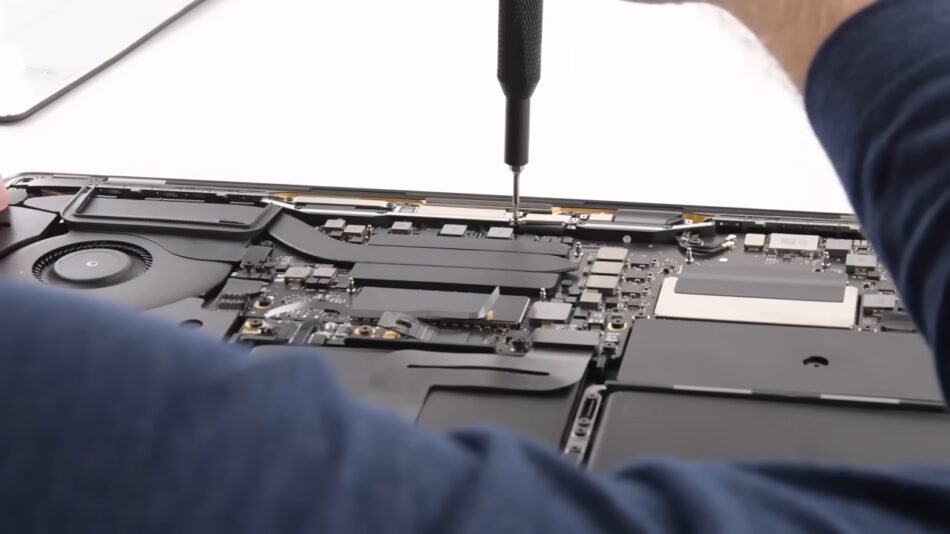
While less frequent, hardware issues can also be responsible. This might involve a loose internal display cable connecting the Touch Bar to the logic board, a failing component on the logic board itself, or even minor physical damage. If you've recently dropped your MacBook Pro or exposed it to liquids, hardware concerns become a more immediate possibility. The key is to systematically rule out software problems first.
Your Troubleshooting Toolkit: Step-by-Step Fixes for a Flickering Touch Bar
Don't let a dancing Touch Bar get the best of you. Here's how to tackle the problem, starting with the easiest and most effective fixes.
1. The Quick Restart: Relaunching Touch Bar Processes
Often, the simplest solution is to give the Touch Bar's controlling processes a fresh start. This can be done in two ways, both effectively "resetting" the software handling your Touch Bar.
Option A: Using Activity Monitor (User-Friendly)
The Activity Monitor is your Mac's task manager, allowing you to view and manage background processes.
- Open
Launchpad, then navigate toOther, and selectActivity Monitor. - In the search bar at the top right, type
TouchBarServer. - Select the
TouchBarServerprocess in the list. - Click the 'X' button in the toolbar (it looks like an octagon with an X).
- When prompted, choose
Force Quit. - Observe your Touch Bar. If the flickering stops, you've likely identified a software issue.
- If the problem persists, repeat steps 2-5 for
Control StripandTouch Bar Agent.
Option B: Using Terminal (For the Command-Line Savvy)
Terminal provides a more direct way to force quit these processes. It's often quicker if you're comfortable with command lines. - Open
Launchpad, then navigate toOther, and selectTerminal. - Type the following command exactly as it appears, then press
Enter:sudo pkill TouchBarServer; sudo killall ControlStrip; pkill "Touch Bar Agent" - If prompted, enter your administrator password. You won't see characters appear as you type, but it is registering. Press
Enteragain. - The command will instantly restart these processes. Check your Touch Bar for improvement.
Insight: If these steps resolve the flickering, the issue was almost certainly a transient software glitch. Good job!
2. Fine-Tuning Your Touch Bar Settings
Sometimes, a conflict in how the Touch Bar is configured can lead to visual anomalies. Adjusting these settings can restore normalcy.
- Click the
Apple menuin the top-left corner and selectSystem Settings(orSystem Preferenceson older macOS versions). - Navigate to
Keyboard. - Find the
Touch Bar Settingssection. - In the "Touch Bar shows" dropdown menu, select
Expanded Control Strip. This ensures a consistent display and can sometimes resolve odd behaviors. - Optionally, click
Customize Control Strip. Here, you can drag buttons off the strip and then drag them back on. This can sometimes reset individual button states that might be causing conflicts.
3. Reclaiming Control from the Ambient Light Sensor
Your MacBook Pro uses an ambient light sensor to automatically adjust screen and Touch Bar brightness based on your environment. While convenient, a malfunctioning sensor can cause erratic brightness changes that look like flickering.
- Click the
Apple menuand go toSystem Settings. - Select
Displays. - Look for the
Automatically adjust brightnessoption and toggle it off. - Manually set your preferred brightness. If the flickering disappears, the sensor was the culprit.
4. Clearing Out the Digital Clutter: Deleting System Cache
Over time, your Mac accumulates system cache files. While meant to speed things up, corrupted or excessive cache can sometimes lead to unexpected performance issues, including display irregularities.
Manually deleting system cache can be a bit intricate, requiring navigation through system folders, and it’s crucial to know which files are safe to remove. For most users, a specialized cleaning tool offers a safer and simpler approach. Tools like iBoysoft DiskGeeker (mentioned in the ground truth) are designed to identify and safely remove junk files, including system cache.
- Download, install, and open a reputable cleaning application like iBoysoft DiskGeeker.
- Select your user data volume (often labeled
Macintosh HD - DataormacOS - Data). - Click the
Clean Junkoption. - Review the scan results, ensuring
System Cachefiles are selected for deletion. - Click
Cleanto remove the selected files. - Restart your MacBook Pro after cleaning to allow the system to rebuild fresh cache files.
5. Resolving Virtual/Physical Conflicts: Turn Off Touch Bar Zoom
Accessibility features are powerful, but sometimes they can create unforeseen conflicts. Touch Bar zoom, for instance, magnifies the content of your Touch Bar. If there's a disagreement between this magnified virtual display and the physical Touch Bar, flickering can occur.
- Click the
Apple menuand selectSystem Settings. - Go to
Accessibility. - Select
Zoomfrom the sidebar. - Uncheck the box next to
Enable Touch Bar zoom. - Test your Touch Bar.
6. The Deeper Reset: SMC and NVRAM
When software tweaks don't quite cut it, you might need to go deeper into your Mac's core system controllers. The System Management Controller (SMC) manages low-level functions like keyboard backlighting, battery management, and, yes, the Touch Bar. Non-Volatile Random-Access Memory (NVRAM) stores certain system settings, which can sometimes become corrupted. Resetting both can resolve persistent glitches.
Since the steps for SMC and NVRAM reset are detailed in the next section (for screen flickering), we'll defer to those comprehensive instructions. For now, understand that these resets are powerful tools for resolving a wide array of Mac behavioral issues, including those affecting your Touch Bar.
7. Staying Current: Update macOS
System bugs are a common cause of unpredictable behavior. Apple regularly releases macOS updates that include bug fixes, performance enhancements, and security patches. An outdated operating system might simply have a known bug causing your Touch Bar to flicker.
- Click the
Apple menuand go toSystem Settings. - Select
Generalin the sidebar. - Click
Software Update. - If an update is available, download and install it. Ensure your Mac is backed up before starting any major OS update.
When the Screen Joins the Dance: Understanding MacBook Pro Screen Flickering
Sometimes, the flickering isn't just confined to the Touch Bar; it affects your entire MacBook Pro screen. While related, these are often distinct issues, though some solutions overlap. Understanding the nuances is key, especially given the sophisticated displays and graphics processing in Pro models.
Symptoms of Screen Flickering
Screen flickering manifests as quick flashes, intermittent blackouts, strange patterns, or color distortion across the entire display. It often appears when you first open your MacBook and might lessen as the computer warms up. This can make daily use incredibly frustrating, whether you're working, browsing, or enjoying multimedia.
Why Pro Models are Different (and Sometimes More Prone)
MacBook Pro devices often exhibit more noticeable flickering than their Air counterparts. This is largely due to their more complex graphics processing units (GPUs) and higher-end displays. Pro models with a Touch Bar might experience related flickering, where one issue exacerbates the other. Larger screens tend to show banding or partial flickering more obviously. Crucially, many Pro models come with dedicated graphics cards (in addition to integrated ones), introducing an extra layer of potential hardware causes related to graphics switching or the dedicated GPU itself.
Common Causes of Screen Flickering
Just like the Touch Bar, screen flickering can stem from both software and hardware.
Software Causes:
- Outdated macOS or Apps: Bugs in the operating system or graphics-intensive applications (e.g., Chrome, Photoshop) are common culprits.
- Incorrect Display Settings: Wrong resolution, refresh rates, or even certain display features can cause issues.
- Background Processes: Applications hogging GPU resources can strain the graphics system, leading to flickering.
Hardware Causes: - Loose/Damaged Display Cables: This is a surprisingly common issue, especially if the MacBook has experienced physical stress.
- Failing Graphics Processor (GPU): The integrated or dedicated graphics chip could be faulty.
- Overheating Components: Excess heat can cause graphics chips to misbehave, leading to flickering.
- Physical Screen Damage: Any impact or pressure on the screen can damage the display panel or its connectors.
Energy Settings & Graphics Switching:
Many MacBook Pro models feature dual graphics systems (integrated for efficiency, dedicated for performance). The system automatically switches between them to save battery. If this process is buggy or inefficient, it can cause the screen to flicker as it transitions between graphics modes.
Comprehensive Fixes for a Flickering MacBook Pro Screen
If your entire screen is flickering, it's time to work through a more extensive troubleshooting list.
1. The Universal First Step: Reboot Your MacBook
A simple restart can clear temporary glitches, flush out memory, and reset minor software conflicts. It's always the first and easiest step.
- Click the
Apple menuin the top-left corner. - Select
Restart. Allow your Mac to fully shut down and power back up.
2. Resetting PRAM/NVRAM
PRAM (Parameter Random-Access Memory) and NVRAM (Non-Volatile Random-Access Memory) store settings like display resolution, startup disk selection, and recent kernel panic information. Resetting them can often resolve display-related issues.
- Shut down your Mac completely.
- Turn it on and immediately press and hold
Option + Command + P + R. - Keep holding these four keys for about 20 seconds.
- On older Macs, you'll hear the startup chime a second time.
- On newer Macs (with the T2 Security Chip), you'll see the Apple logo appear and disappear a second time.
- Release the keys and allow your Mac to start normally.
3. Resetting the SMC (System Management Controller)
The SMC controls power, battery management, keyboard backlighting, and various low-level functions, including aspects of display and Touch Bar operation. Resetting it can resolve a range of power and hardware-related issues. The process varies depending on your Mac model.
- Intel Macs without a T2 Security Chip:
- Shut down your Mac.
- Hold
Shift + Control + Option(these are on the left side of the keyboard) and thepower buttonsimultaneously for 10 seconds. - Release all keys and then press the
power buttonto turn on your Mac.
- Intel Macs with a T2 Security Chip (2018 models and later):
- Shut down your Mac.
- Press and hold
Control + Option + Shift(these are on the right side of the keyboard) for 7 seconds. - While still holding these three keys, also press and hold the
Power button. - Hold all four keys for another 7 seconds.
- Release all keys, then press the
power buttonto turn on your Mac.
- Apple Silicon Macs (M1, M2, M3, etc.):
- No specific SMC reset is needed. Simply
Restartyour Mac. The SMC equivalent functions are handled automatically upon restart.
4. Booting into Safe Mode
Safe Mode starts your Mac with only essential system software and disables non-Apple startup items and extensions. If flickering stops in Safe Mode, it strongly suggests a software conflict or third-party extension is causing the problem.
- Intel Macs:
- Shut down your Mac.
- Turn it on and immediately press and hold the
Shiftkey. - Release
Shiftwhen you see the login window.
- Apple Silicon Macs:
- Shut down your Mac.
- Press and hold the
power buttonuntil you see the "Loading startup options" screen. - Select your startup disk (e.g., Macintosh HD).
- Press and hold the
Shiftkey, then clickContinue in Safe Mode. - Release
Shift.
Insight: If your screen or Touch Bar stops flickering in Safe Mode, you know the issue is with a third-party app, extension, or a system setting that isn't loaded in Safe Mode. You can then begin disabling recently installed apps or extensions to find the culprit.
5. Managing Graphics: Disable Automatic Graphics Switching
For MacBook Pro models with both integrated and dedicated graphics cards, the system automatically switches between them to optimize performance and battery life. A faulty switch can cause flickering.
- Click the
Apple menuand go toSystem Settings. - Select
Battery(orEnergy Saveron older macOS versions). - Find the
Automatic graphics switchingoption and toggle it off. This forces your Mac to use the higher-performance dedicated graphics card constantly, eliminating potential switching glitches. - Be aware that disabling this will likely reduce your battery life.
6. Keep Everything Up-to-Date: macOS and Apps
As mentioned for the Touch Bar, ensuring your operating system and all your applications are current is paramount for stability and bug fixes.
- macOS:
- Click the
Apple menu>System Settings>General>Software Update. - Install any pending macOS updates.
- Apps:
- Open the
App Store. - Click
Updatesin the sidebar. - Install all available app updates, especially if you notice flickering primarily when using a specific application.
7. Display Enhancements: Turn Off True Tone and Night Shift
Features designed to improve your viewing experience can, in rare cases, contribute to display flickering if there's a software conflict or sensor issue.
- True Tone: This feature automatically adapts your display's color and intensity to match the ambient light.
- Go to
Apple menu>System Settings>Displays. - Disable
True Tone.
- Night Shift: Adjusts screen colors to the warmer end of the spectrum after dark.
- Check your Night Shift settings in
System Settings>Displays. Try disabling it temporarily to see if it makes a difference.
8. Running Apple Diagnostics
Apple Diagnostics (formerly Apple Hardware Test) is a built-in tool that can check your Mac for hardware issues, including those related to the display or graphics card.
- Intel Macs:
- Shut down your Mac.
- Turn it on and immediately press and hold the
Dkey. - Hold it until the diagnostics screen appears.
- Apple Silicon Macs:
- Shut down your Mac.
- Press and hold the
power buttonuntil you see the startup options screen. - Press
Command-D.
Insight: The test typically takes a few minutes. If a hardware problem is detected, it will display a reference code (e.g., "NDL" for display issues, "VDC" for video controller issues) and potentially offer a path to Apple Support. Even if it reports no issues, it doesn't entirely rule out subtle hardware problems, but it's a good initial check.
9. Isolating the Display: Test with an External Monitor
This is a crucial diagnostic step to determine if the issue lies with your MacBook's internal display panel or its graphics processing unit (GPU).
- Connect your MacBook Pro to an external monitor using a compatible cable and adapter.
- Observe the external display.
- If the external display doesn't flicker: The problem is almost certainly with your MacBook's internal display panel or the cable connecting it to the logic board.
- If the external display does flicker: The issue is likely originating from the GPU (graphics card) or from the macOS itself.
- Advice: Try different connection types (e.g., HDMI, DisplayPort, USB-C) and different cables to rule out a faulty cable or port.
When to Seek Professional Help: Contacting Apple Support
You've tried every software fix, run diagnostics, and carefully tested with an external monitor. If your Touch Bar or screen continues to flicker, especially if Apple Diagnostics reported an issue or the external monitor test points to a GPU problem, it's time to call in the experts.
Persistent flickering after all these steps could indicate a more serious hardware failure, such as a failing display panel, a problematic graphics processing unit, or even an issue with the logic board itself. These repairs typically require specialized tools and expertise.
- Contact Apple Support: Visit Apple's official support website or call them directly. Explain the troubleshooting steps you've already taken.
- Check Warranty/AppleCare: If your MacBook Pro is still under its limited warranty or AppleCare+ plan, repairs might be covered.
- Back Up Your Data: Before sending your Mac for service, always perform a complete backup of your data using Time Machine or another preferred method. This ensures your important files are safe, regardless of what happens during the repair process.
Sometimes, issues like the one you're experiencing with your Touch Bar flickering can be linked to broader system performance or even issues related to how the display itself is integrated. For more detailed insights into specific Touch Bar problems, you can always refer to comprehensive resources on MacBook Pro Touch Bar flickering. This can help you cross-reference information and find additional context for your specific model.
Empowering Your Next Step: Maintaining a Healthy MacBook Pro
A flickering Touch Bar or screen is certainly unsettling, but as this guide shows, many causes are resolvable with a methodical approach. By understanding the distinction between software and hardware issues, and systematically working through the troubleshooting steps, you can often bring your MacBook Pro back to full health.
Remember to regularly update your macOS and applications, monitor your Mac's performance, and keep an eye on any new software installations that might introduce conflicts. Should the problem persist despite your best efforts, don't hesitate to leverage Apple's professional support. Your MacBook Pro is a powerful tool, and keeping it in top condition ensures you get the most out of it, flicker-free.